

Setting up HubSpot CRM the right way can make a huge difference in how your team uses the system every day. A well-planned CRM setup helps your team manage contacts, track deals, automate follow-ups, and view reports clearly. But when the setup is rushed, businesses often face messy data, duplicate records, unclear pipelines, poor reporting, and low team adoption.
At HuboExperts, we have seen that most CRM problems do not happen because HubSpot is difficult to use. They happen because the CRM was not planned, structured, and implemented properly from the beginning.
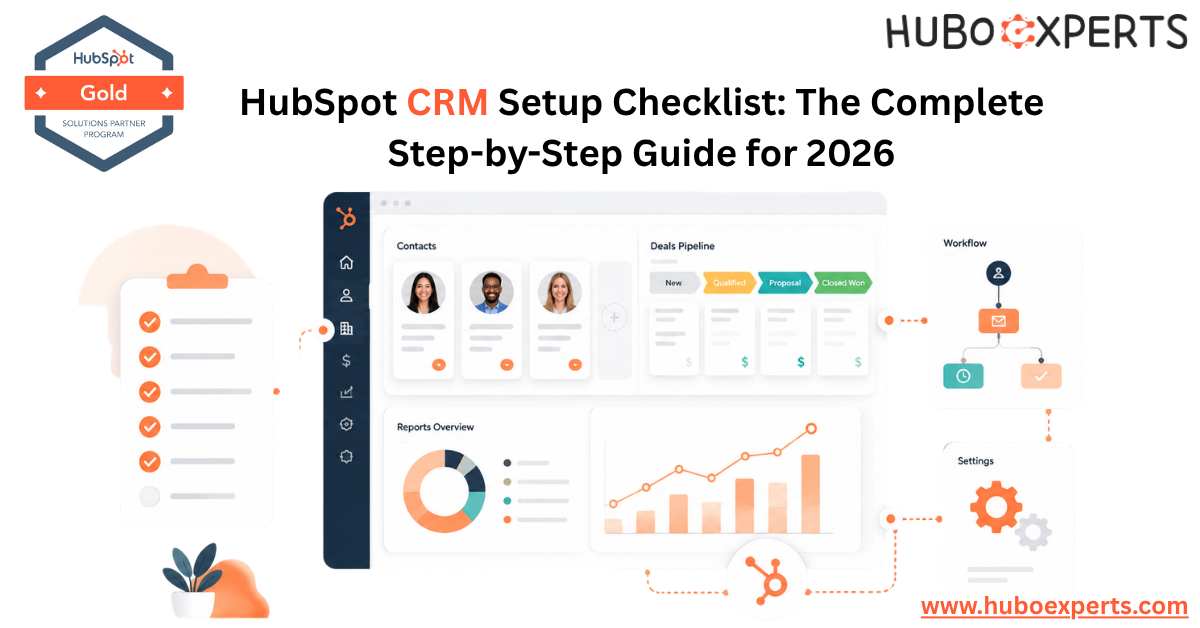
This HubSpot CRM setup checklist will walk you through the key steps you should follow before and during implementation. It covers account setup, data migration, pipeline customization, automation, reporting, integrations, and team adoption.
Whether you are a small business setting up HubSpot for the first time, a sales team moving from spreadsheets, or a company migrating from another CRM like Salesforce, this checklist will help you build a clean, scalable, and easy-to-use HubSpot CRM setup.
Why a Structured HubSpot CRM Setup Checklist Matters
HubSpot is famously easy to click around in. That's also its biggest trap. You can create properties, pipelines, and workflows in an afternoon — but if you do it without a plan, you end up with inconsistent property names, pipeline stages that don't match how deals actually close, and automations nobody trusts.
A documented checklist forces you to:
- Define why you're implementing HubSpot before touching any settings
- Build a clean data foundation instead of importing years of spreadsheet clutter
- Align sales, marketing, and service on shared definitions (like what counts as a "qualified lead")
- Avoid rework that costs far more than doing it right the first time
The 10-Phase HubSpot CRM Setup Checklist
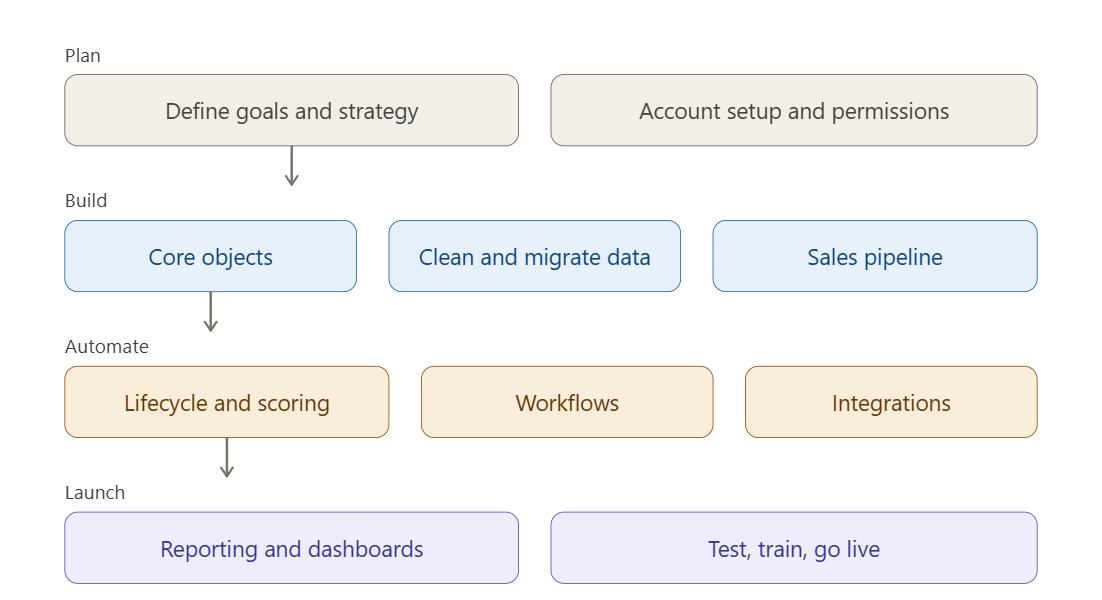 Phase 1: Define Goals and CRM Strategy (Before You Touch the Software)
Before any configuration work, get clear answers to:
- What business outcome is this CRM supposed to drive? (Pipeline visibility, faster follow-up, marketing-sales alignment, reporting accuracy?)
- Who are the system's primary users, and what does success look like for each team?
- What integrations (email, calendar, support desk, billing) need to connect to HubSpot?
- What KPIs will you track 90 days after go-live?
Skipping this step is the single most common reason implementations stall — teams configure technology before agreeing on process.
Phase 2: Account Setup and User Permissions
- Set up your business units, domains, and branding (logo, brand colors, email footer)
- Create user accounts and assign permission sets (admin, sales rep, marketing user, read-only)
- Configure teams if you have multiple sales pods or regional groups
- Set up email sending domains (SPF, DKIM, DMARC) for deliverability
- Connect your primary business email and calendar
Phase 3: Core CRM Object Configuration
This is the foundation everything else builds on. Configure:
| CRM Object | What to Set Up |
|---|---|
| Contacts | Lifecycle stages, lead status property, custom contact properties |
| Companies | Industry classification, company size tiers, association labels |
| Deals | Deal stages, deal types, forecast categories |
| Tickets (if using Service Hub) | Pipeline stages, SLA tiers, ticket categories |
Best practice: Use HubSpot's default properties wherever possible before creating custom ones. Excess custom properties are one of the top causes of CRM clutter.
Phase 4: Clean and Migrate Your Data
| Step | Action | Why It Matters |
|---|---|---|
| 1 | Export data from legacy CRM/spreadsheets | Establishes your source dataset |
| 2 | Deduplicate contacts and companies | Prevents inflated counts and confused reps |
| 3 | Standardize formatting (phone numbers, country names, job titles) | Keeps segmentation and reporting accurate |
| 4 | Map old fields to new HubSpot properties | Avoids data loss during import |
| 5 | Import in a sandbox or test portal first | Catches errors before they touch live data |
| 6 | Validate record counts post-import | Confirms nothing dropped during migration |
Phase 5: Build Your Sales Pipeline
Don't accept HubSpot's default "Appointment Scheduled → Closed Won/Lost" stages if they don't reflect reality. Map your actual sales process:
- Name each stage using language your reps already use
- Define entry/exit criteria for each stage (what has to be true to move a deal forward)
- Set deal stage probabilities for accurate forecasting
- Build separate pipelines for different products/sales motions if needed (e.g., new business vs. renewals)
Phase 6: Set Up Marketing and Lifecycle Stages
- Define lifecycle stages: Subscriber → Lead → MQL → SQL → Opportunity → Customer
- Build lead scoring criteria so marketing and sales agree on what "sales-ready" means
- Set up forms, landing pages, and lead capture sources
- Connect ad accounts and UTM tracking for attribution reporting
Phase 7: Configure Workflow Automation
Start small. Common first workflows include:
- New lead notification to the assigned owner
- Lead rotation/round-robin assignment
- Internal deal-stage change alerts
- Post-purchase onboarding email sequences
- Re-engagement campaigns for stale leads
Test every workflow in a sandbox or with a small test list before activating it for your full database.
Phase 8: Integrations
Connect the tools your team already relies on:
- Email and calendar (Gmail/Outlook)
- Support or helpdesk tools
- Accounting/billing platforms
- Marketing tools (webinar platforms, ad networks)
- Custom integrations via HubSpot's API or App Marketplace
Phase 9: Reporting and Dashboards
- Build role-specific dashboards (sales rep, sales manager, marketing, executive)
- Set up standard reports: pipeline velocity, win rate, lead source attribution, rep activity
- Schedule automated report delivery to stakeholders
Phase 10: Testing, Training, and Go-Live
- Run user acceptance testing (UAT) with real scenarios from each team
- Train users with role-specific sessions (don't run one generic training for everyone)
- Document a single shared "CRM setup reference" covering lifecycle definitions, pipeline rules, and property standards
- Collect feedback in the first 2 weeks and adjust quickly
- Set a 30/60/90-day review checkpoint to measure against your Phase 1 goals
HubSpot CRM Setup: DIY vs. Onboarding Partner vs. HubSpot-Guided Onboarding
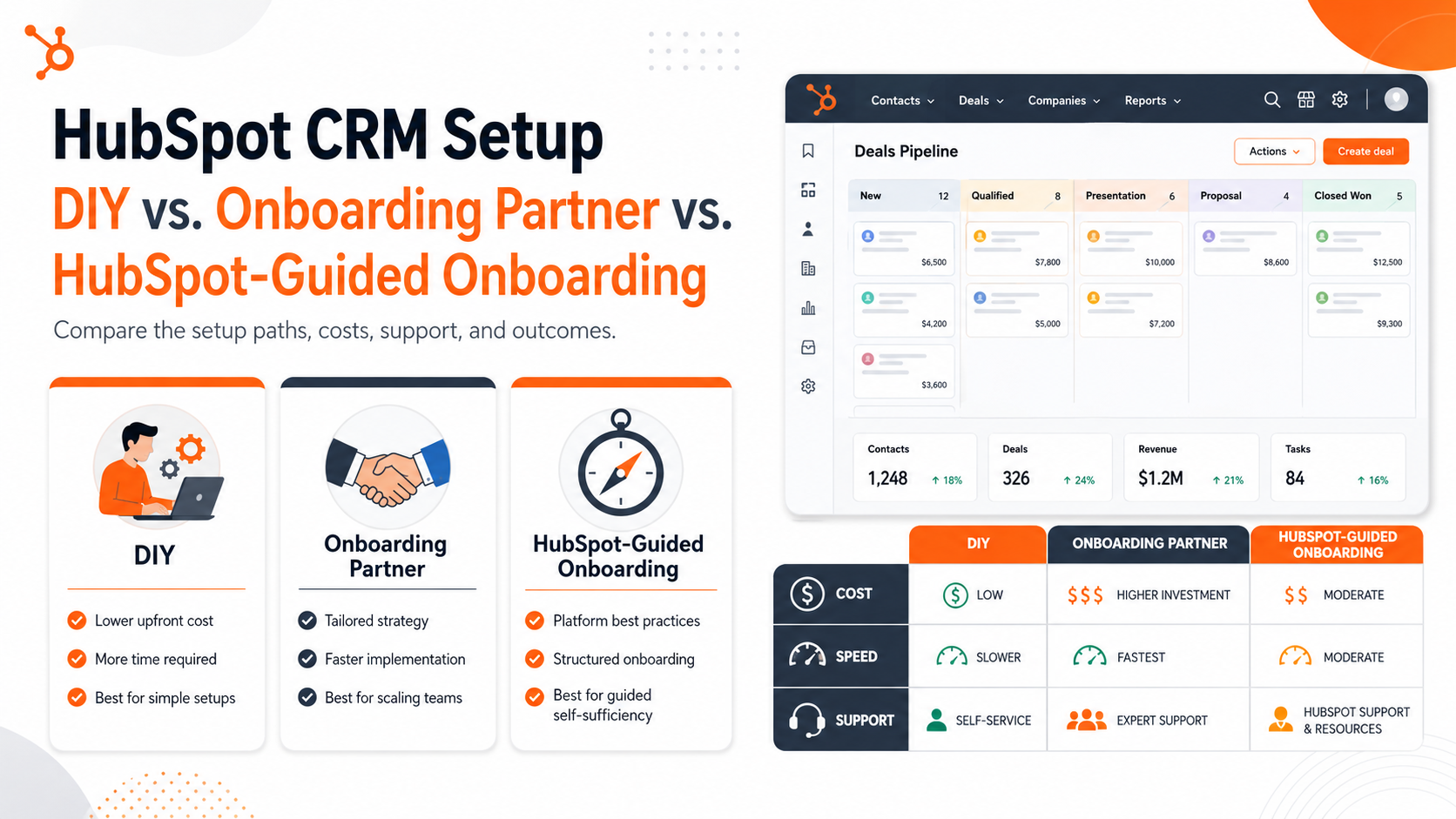
Setting up HubSpot CRM the right way is important if you want clean data, smooth team adoption, better reporting, and scalable automation.
At HuboExperts, we usually see businesses choose one of three setup paths: DIY setup, HubSpot-guided onboarding, or working with an onboarding partner.
1. DIY HubSpot Setup
DIY setup is best for small teams with simple requirements. You can set up contacts, companies, pipelines, forms, and basic reports on your own.
The benefit is lower upfront cost, but the risk is that mistakes in data structure, lifecycle stages, workflows, or reporting can create problems later.
Best for: Small teams, simple CRM needs, and businesses with internal HubSpot knowledge.
2. HubSpot-Guided Onboarding
HubSpot-guided onboarding gives you structured guidance from HubSpot’s team. It helps you understand the platform, follow best practices, and move through the setup process with support.
However, your team may still need to do much of the actual setup work internally.
Best for: Teams that want official HubSpot guidance and have internal resources to implement the setup.
3. HubSpot Onboarding Partner
Working with a HubSpot onboarding partner gives you a more customized setup. A partner can help with CRM strategy, data cleanup, pipelines, properties, automation, reporting, integrations, and team training.
At HuboExperts, we focus on building HubSpot around your actual sales, marketing, and service process — not just setting up tools.
Best for: Growing businesses, complex sales processes, multiple teams, automation needs, and companies that want faster time to value.
HuboExperts Recommendation
If your setup is simple, DIY may be enough.
If you need guidance,HubSpot-guided onboarding can help.
But if you want a clean, scalable, and business-specific HubSpot CRM setup, working with an onboarding partner is usually the best choice.
HubSpot works best when it is built around your real customer journey, sales process, and reporting goals. That is where HuboExperts can help.
HubSpot CRM Tiers: Which Plan Fits Your Setup Checklist?
Choosing the right HubSpot CRM plan is just as important as setting up the CRM correctly. Each tier gives you a different level of features, automation, reporting, and scalability.
At HuboExperts, we always recommend choosing your HubSpot plan based on your setup checklist — not just the lowest price.
HubSpot offers Free Tools, Starter, Professional, and Enterprise plans across its main hubs, including Sales Hub, Marketing Hub, Service Hub, Content Hub, and Data Hub. Free tools are useful for basic CRM needs, while paid plans unlock more advanced features for growing teams.
1. HubSpot Free Tools
HubSpot Free Tools are a good starting point for small businesses that want to manage contacts, track basic deals, and organize customer data without an upfront software cost.
You can use free CRM tools for basic contact management, deal tracking, tasks, and customer records. HubSpot’s free CRM is available at no cost, with free tools for up to two users and up to 1,000 contacts.
Best for: New businesses, solo founders, and small teams testing HubSpot for the first time.
2. HubSpot Starter
Starter is a better fit when your business is ready to move beyond the basics. It is useful for small teams that need cleaner branding, better lead capture, simple automation, email tools, and a more professional CRM setup.
HubSpot’s Starter Customer Platform includes Starter editions of HubSpot’s core products for marketing, sales, and customer service, powered by HubSpot Smart CRM.
Best for: Small businesses, startups, and teams that need a more structured CRM setup without heavy complexity.
3. HubSpot Professional
Professional is where HubSpot becomes much more powerful for automation, reporting, campaign management, sales processes, and scalable operations.
This plan is usually the right fit when your checklist includes advanced workflows, custom reporting, sales sequences, lead nurturing, campaign tracking, and deeper team adoption.
Best for: Growing businesses that need automation, reporting, sales enablement, and stronger marketing or service operations.
4. HubSpot Enterprise
Enterprise is built for larger teams with complex processes, advanced permissions, governance needs, custom objects, multi-team structures, and deeper reporting requirements.
This tier is best when your CRM setup checklist includes strict user access, multiple business units, advanced data structure, custom reporting, and large-scale automation.
Best for: Larger companies, multi-team organizations, and businesses with complex CRM architecture.
Quick Comparison
| HubSpot Tier | Best For | Setup Checklist Fit |
|---|---|---|
| Free Tools | Very small teams | Basic contact and deal management |
| Starter | Small businesses | Lead capture, simple CRM structure, basic automation |
| Professional | Growing teams | Advanced workflows, reporting, campaigns, and sales process automation |
| Enterprise | Larger teams | Complex permissions, governance, custom objects, and advanced CRM operations |
At HuboExperts, we help businesses choose the right HubSpot plan and set it up properly from day one — so your CRM supports your team, your data, and your growth.
Common HubSpot CRM Setup Mistakes to Avoid
-
Importing messy data "as-is" instead of cleaning it first — this is the #1 cause of long-term CRM frustration
-
Leaving default pipeline stages untouched so reporting never reflects your real sales motion
-
Skipping team training and assuming people will "figure it out"
-
Over-customizing properties before understanding what reports you actually need
-
Turning on too much automation at once without testing
-
No single source of truth document describing how the CRM should be used going forward
Case Study: How SuperFi Moved From Manual Tracking to a Structured HubSpot CRM Setup
A strong HubSpot CRM setup checklist is not just theory. It becomes valuable when a business uses it to move from scattered data and manual processes to a clean, organized CRM system.
One example is SuperFi, a business that needed a better way to manage contacts, companies, deals, and sales activities. Before working with HuboExperts, their team was relying heavily on Excel and manual tracking. This made it difficult to keep records updated, track deal progress, manage follow-ups, and get clear visibility into the sales pipeline.
HuboExperts helped SuperFi build a more structured HubSpot CRM setup by focusing on the key foundation areas first.
The implementation included:
-
Migrating data from Excel into HubSpot CRM
-
Cleaning and organizing existing contact and company records
-
Mapping fields correctly before import
-
Creating custom properties based on the business process
-
Setting up deal pipelines and deal stages
-
Organizing contacts and companies for better segmentation
-
Building workflow automation for follow-ups and internal actions
-
Creating reports for sales visibility
-
Supporting the team with HubSpot adoption
This gave SuperFi a cleaner CRM structure and reduced the dependency on spreadsheets. Their team could manage customer information in one place, track deals more clearly, and use HubSpot as a central system for sales activity and reporting.
This case study shows why the order of setup matters. If data cleanup, field mapping, pipeline structure, and reporting are handled before automation, HubSpot becomes easier to use and easier to scale.
For businesses planning their HubSpot CRM setup in 2026, SuperFi’s journey is a good example of how the right checklist can turn a messy setup into a practical, scalable CRM system.
Read the full SuperFi case study to see how HuboExperts helped with Excel to HubSpot CRM migration, pipeline setup, automation, and reporting.
Final Thoughts
A successful HubSpot CRM setup is not about doing everything quickly. It is about doing everything in the right order.
At HuboExperts, we always recommend starting with strategy first, then moving to data cleanup, CRM configuration, workflow automation, reporting, and finally team adoption. When these steps are followed properly, HubSpot becomes more than just a CRM — it becomes a system your team actually uses to manage leads, track deals, improve follow-ups, and drive revenue.
The biggest mistake businesses make is jumping directly into workflows and automation before fixing their data, pipelines, lifecycle stages, and reporting structure. This often leads to confusion, poor adoption, and unnecessary rework later.
If you are setting up HubSpot for the first time, move phase by phase. Build a clean foundation first, then scale your automation and reporting once your CRM structure is clear.
Frequently Asked Questions
How long does a HubSpot CRM setup actually take?
For a small team with one pipeline and clean-ish data, you're looking at one to three weeks if someone's dedicated real hours to it, not just squeezing it in between other work. For multi-team, multi-pipeline setups with messy legacy data, plan for 6-12 weeks. Anyone who tells you "we'll have it done in two days" is setting up a wizard, not a CRM you'll trust in six months.
Can I set up HubSpot CRM myself without hiring anyone?
Yes, especially on the free or Starter tiers with a straightforward sales process. The DIY path gets riskier as you add pipelines, teams, and integrations — not because HubSpot gets harder to click through, but because the decisions get harder to get right without having seen what breaks downstream.
What's the biggest mistake people make when setting up HubSpot?
Importing old data without cleaning it first. It seems like a time-saver in week one and turns into the thing everyone complains about by month three — duplicate contacts, inconsistent formatting, reports that don't add up. Clean data is boring work, but it's the work that actually matters.
Do I need to clean my data before migrating, or can HubSpot do it after import?
Clean it before. HubSpot has some built-in deduplication tools, but they work best on data that's already close to clean. Once duplicate records start getting referenced in deals, workflows, and email sends, untangling them is far more painful than fixing a spreadsheet before it ever touches your CRM.
Should I use HubSpot's default pipeline stages or build my own?
Build your own almost every time. The defaults are generic by design — they're not going to match how your specific sales process actually works. Use language your reps already say out loud, and define real entry and exit criteria for each stage, not vague feelings about "probably moving forward."
What's the difference between lifecycle stage and lead status in HubSpot?
Lifecycle stage tracks where someone sits in your overall funnel — subscriber, lead, MQL, opportunity, customer. Lead status is a more granular, often sales-specific layer on top of that — things like "open," "attempted to contact," "connected." People often try to cram both ideas into one property during migration, which is exactly the kind of field-mapping mistake that causes headaches later.
How many workflows should I turn on when I first launch?
Fewer than you think. Start with the handful that matter most — new lead notifications, lead routing, deal-stage alerts — test each one against a small list, then add more once those are working reliably. Switching on ten workflows at once makes it nearly impossible to figure out which one is misbehaving when something goes wrong.
Which HubSpot plan do I need just to get a proper setup running?
The free CRM covers basic contact, company, and single-pipeline deal management, which is enough for very simple operations. Most growing teams end up needing Professional once they want multiple pipelines, real automation, and custom reporting. Enterprise mostly matters once you've got multiple teams needing granular permissions and advanced attribution. Check HubSpot's current pricing page before deciding, since packaging shifts over time.
Can I migrate from Salesforce to HubSpot without losing historical data?
Yes, but it takes planning. Salesforce and HubSpot don't map fields one-to-one, so you'll need to decide in advance how things like opportunity stages, custom objects, and historical activity logs translate over. Run a test migration with a small batch of records first so you catch mapping problems before they touch your full dataset.
How do I know if my HubSpot setup actually worked?
Go back to the goals you set before you started — the ones from step one — and check them at 30, 60, and 90 days. Are reps actually logging activity without being chased? Do the pipeline numbers match reality when you ask a rep to walk you through their deals? Is marketing handing off leads sales actually wants? If you skipped setting goals at the start, this is the part where that catches up with you.

